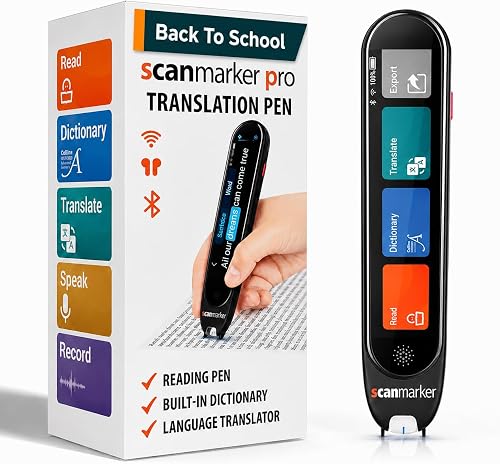
The Optical Physics of Handheld OCR Scanning
Unlike flatbed scanners that capture a static, motionless document beneath a moving lamp, a pen scanner uses a high-speed micro-camera capturing between 100 and 200 image frames per second as your hand sweeps across the page.
The pen’s internal DSP (Digital Signal Processor) continuously calculates optical flow vectors, stitching overlapping microscopic frame slices into a continuous horizontal text strip before running optical character recognition. When scan accuracy drops from 99% to 80%, the cause is almost never a defective software algorithm—it is almost always physical micro-motion inconsistency.
The Golden Angle: Pitch, Yaw & Roll Alignment
Achieving flawless 99%+ OCR accuracy requires maintaining the optical sensor within its optical sweet spot:
Optimal Pitch (Tilt Angle): Hold the pen at an angle of 60° to 80° relative to the paper surface. Tilting too far backward (below 50°) lifts the front optical lens off the paper, blurring focus. Holding the pen vertically perpendicular (90°) can cause the guide roller to skip.
Neutral Roll (Wrist Rotation): Ensure both left and right guide plastic contact points rest evenly against the paper. Twisting your wrist rotates the camera sensor diagonally, skewing character baseline alignment.
Perpendicular Tracking (Yaw): Guide the pen straight along the printed baseline. Drifting diagonally across lines causes the camera to slice through ascending letters (like "d" or "h") and descending letters (like "p" or "g").
Calibration Rule of Thumb: Start your scan 1/4-inch (approx. 5mm) to the left of the first letter you want to scan. This gives the camera sensor 3 to 5 reference frames to calibrate paper contrast and line height before it encounters the first character.
Scanning Speed: The Sweet Spot Between Too Fast & Stuttering
A common beginner mistake is moving the pen either too rapidly or with hesitant, jerky micro-pauses. The optimal scanning velocity is 3 to 5 inches per second (roughly 8 to 12 cm/s)—about the same speed as drawing a line with a yellow highlighter.
Scanning excessively fast exceeds the sensor’s frame acquisition rate, resulting in dropped letters or merged words. Conversely, stuttering or hesitating mid-word can cause the stitcher algorithm to duplicate letters (e.g., typing "wword" instead of "word").
Overcoming Problematic Paper: Gutters, Gloss & Small Fonts
Challenging physical media requires specific operational workarounds:
Thick Paperback Book Gutters: When scanning near the curved inner binding of a paperback, the page curvature distorts camera focus. Flatten the binding firmly with your non-scanning hand, or scan outward from the gutter toward the margin.
Glossy Paper & Magazine Glare: Heavy glossy coatings reflect overhead LED or fluorescent lighting directly into the pen’s optical aperture, blinding the sensor. Angle the book slightly away from direct overhead light sources to eliminate specular glare.
Tiny or Giant Fonts: Standard pen scanners are calibrated for 6pt to 22pt typography. Extremely small footers (under 6pt) or massive headlines (above 24pt) exceed the vertical field of view of the optical window.
Comprehensive Diagnostic Matrix: Symptoms, Root Causes & Fixes
Use this troubleshooting matrix to immediately resolve scanning anomalies:
| Symptom / Error | Probable Root Cause | Immediate Corrective Action |
|---|---|---|
| Missed first letter of sentence | Scan started directly on top of letter | Begin scanning 1/4 inch before the first character to allow sensor calibration |
| Duplicate characters (e.g. "thhe") | Hesitation or micro-stutter in hand motion | Maintain steady, fluid scanning velocity without pausing mid-line |
| Garbled punctuation or symbols | Wrong language OCR model selected | Verify language settings in software (e.g., UK English vs. US English or Spanish) |
| Letters cut off horizontally | Pen held at excessive tilt angle (<50°) | Elevate pen grip to 70° so the optical nose sits flat on the page |
| Bluetooth lag or dropped keystrokes | Radio interference or power save throttling | Re-pair Bluetooth connection or connect directly via USB cable for zero latency |
| Device scans upside down / backwards | Wrong hand orientation profile | Toggle "Left-Handed Mode" in device system settings |
Diagnostic Resources & Hardware Network Support
Need additional technical documentation, driver downloads, or hardware calibration assistance? Consult our technical network:
- Scanmarker Dyslexia Guide — Technical calibration and hardware troubleshooting documentation for Scanmarker devices.
- Pen Scanner Journal — Hardware teardowns, optical sensor engineering, and firmware update guides.
- How Pen Scanning Works — In-depth breakdown of optical sensors, DSP stitchers, and OCR neural engines.
- Pen Scanner Buying Guide — Hardware specifications, ergonomics, and build quality reviews.
- OCR Pens Overview — Line-by-line digital text capture devices and specifications.