The Digital Highlighter: How Keyboard Emulation (HID) Works
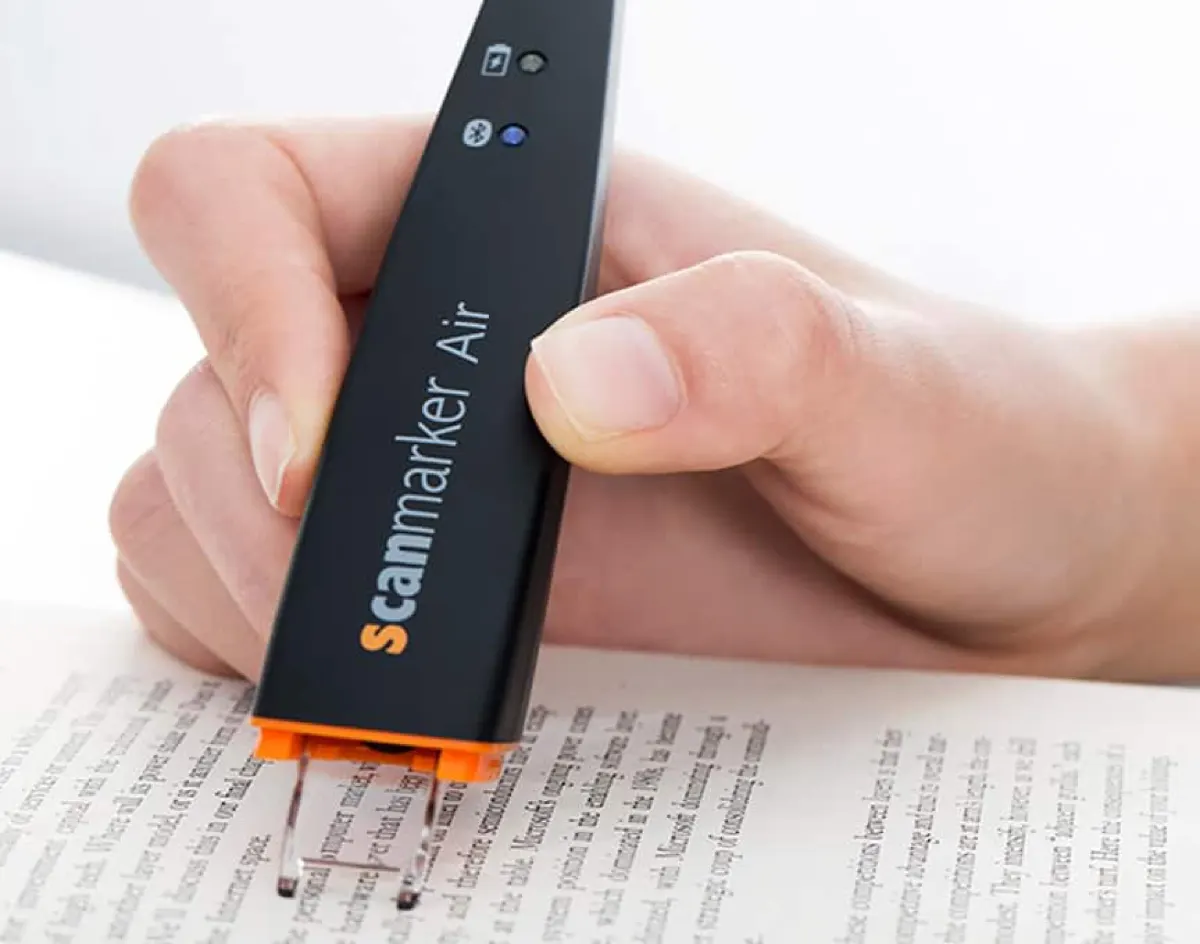
A connected OCR pen—such as the Scanmarker Air—is engineered to function as an ultra-high-speed human interface device (HID keyboard). When you glide the optical tip over a printed line of text, the onboard image processor digitizes the characters and streams them directly to your computer at your active cursor position.
Because the operating system interprets the pen scanner as a standard physical keyboard, it requires zero proprietary plugins, custom browser extensions, or complex API integrations. If you can click your mouse into a text box, you can scan directly into it.
Step-by-Step Setup: Scanning into Google Docs & Microsoft Word
Scanning printed quotes from textbooks, journals, or physical paper documents into word processors takes less than two minutes to configure:
1. Connect Hardware: Pair your Scanmarker Air via Bluetooth (or its included USB dongle on Windows).
2. Launch Companion Utility: Open the lightweight desktop driver (macOS or Windows) or open the web scanning interface in Google Chrome.
3. Select Delimiter Mode: Choose "Append Space" for continuous sentence-by-sentence scanning, or "Append Return" if you want each scanned line to appear on a new paragraph.
4. Position Cursor: Open your document in Google Docs or Microsoft Word and click precisely where you want the extracted text to begin.
5. Scan Smoothly: Place the transparent guide tip 1/4-inch before the first character and glide steadily across the line at approximately 3 to 5 inches per second.
Pro Productivity Tip: In the Scanmarker software settings, enable "Auto-Space." This automatically inserts a single blank space after every completed scan, allowing you to scan sentence after sentence without ever touching your laptop spacebar.
Tab-Delimiter Scanning: Populating Microsoft Excel & Google Sheets
Data entry from physical paper invoices, financial statements, catalog part numbers, and laboratory records is notorious for typing fatigue and transcription errors. Pen scanners streamline this process through "Tab-Delimiter Mode."
When you configure the pen’s trailing action to "Tab Keystroke" instead of "Enter" or "Space," each scan inputs the text into the active spreadsheet cell and immediately advances the cursor to the adjacent column. You can populate dense multi-column tables in Excel or Google Sheets in a fraction of the time required for manual 10-key typing.
Building a Second Brain: Workflows for Notion, Obsidian & Roam
Knowledge workers, academic researchers, and avid non-fiction readers frequently struggle with physical book notes getting trapped in paper margins. A digital scanning pen is the ultimate tool for populating digital knowledge bases:
Notion Literature Databases: Scan core thesis statements directly into Notion block quotes, instantly tagging the entry with author, page number, and conceptual tags.
Obsidian Markdown Vaults: Scan passages into local Markdown files, surrounding key conceptual phrases with [[wikilinks]] for bidirectional knowledge graph connection.
Zotero & Mendeley Research Annotations: Scan direct excerpts into your citation manager notes field while reading physical library books, preserving quotation fidelity for scholarly publishing.
Software Configuration Matrix: Optimal Keystroke & Delimiter Settings
Configure your pen scanner driver for these optimal application settings:
| Application | Recommended Delimiter | Scan Speed Setting | Workflow Goal |
|---|---|---|---|
| Google Docs | Append Single Space | Medium-High | Continuous prose note-taking & textbook summaries |
| Microsoft Word | Append Single Space / Enter | Medium-High | Scholarly essays, manuscripts & quotation capture |
| Microsoft Excel | Append Tab Keystroke | Medium | Numerical data entry, invoice indexing & inventory tables |
| Google Sheets | Append Tab / Enter | Medium | Financial reconciliation & survey form digitization |
| Notion | Append Return (New Block) | Medium | Block quote capture, book notes & database records |
| Obsidian / Roam | Append Space + [[Link]] | Medium | Bidirectional note synthesis & literature slip-box notes |
Productivity Software & Hardware Interlinking Hub
Expand your digital reading and note-taking ecosystem with these complementary resources:
- PenScanner.co — Digital highlighter productivity workflows, app setups, and workflow comparisons.
- Pen Scanner Journal — Advanced guides on digital note-taking, markdown workflows, and research ergonomics.
- Scanning Pen for Work — How legal, medical, and finance professionals use OCR pens for daily data workflows.
- OCR Pens Guide — Technical comparison of optical sensors, accuracy, and character recognition engines.
- Pen Scanners for Researchers — Archival research, citation management, and library book extraction.

